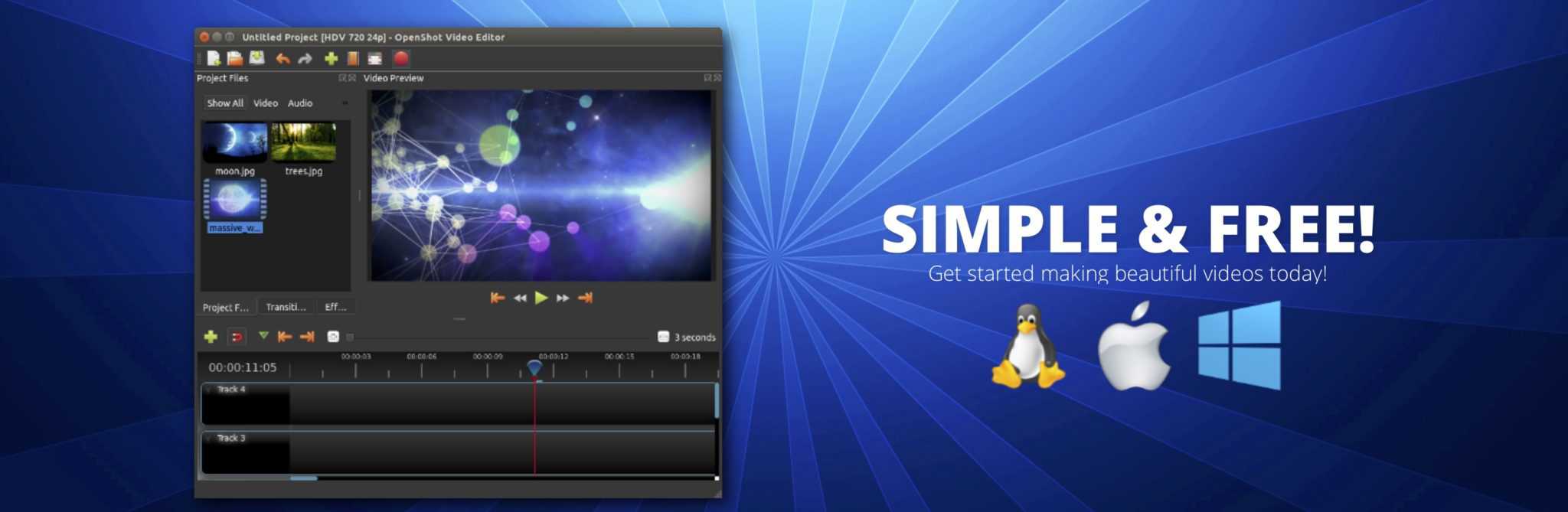
Open Shot är en videoeditor med fokus på enkelhet och kraftfullhet. Video-editorn är helt gratis (Open Source).
Videoredigeringsverktyg kan kosta tusenlappar men Open Shot är alltså helt gratis och du för med renderingsfunktioner för titlar och texter, övergångsfilter och funktioner som du normalt bara hittar i dyra, kommersiella program.
Funktioner
Plattformsövergripande (Linux, Mac och Windows)
Stöd för många video-, ljud- och bildformat (baserat på FFmpeg)
Kraftfulla kurvbaserade nyckelbildsanimationer
Skrivbordsintegration (stöd för dra och släpp)
Obegränsat med spår/lager
Ändra storlek på klippet, skala, trimma, knäppa, rotera och klippa
Videoövergångar med förhandsvisningar i realtid
Komposition, bildöverlägg, vattenstämplar
Titelmallar, titelskapande, undertitlar
Stöd för 2D-animationer (bildsekvenser)
3D-animerade titlar (och effekter)
SVG-vänlig, för att skapa och inkludera vektortitlar och krediter
Rullande filmer
Avancerad tidslinje (inklusive dra och släpp, rullning, panorering, zoomning och knäppning)
Bildrutor noggrannhet (steg genom varje bildruta i videon)
Tidskartläggning och hastighetsändringar på klipp (långsamt/snabbt, framåt/bakåt, etc…)
Ljudmixning och redigering
Digitala videoeffekter, inklusive ljusstyrka, gamma, nyans, gråskala, chroma key och många fler!
We designed OpenShot Video Editor to be an easy to use, quick to learn, and surprisingly powerful video editor. Take a quick look at some of our most popular features and capabilities.
Birdfont är en editor för att skapa egna, nya fonter.
Vill du skapa något verkligt unikt, för dina trycksaker, din hemsidas eller din digitala butik så kan du skapa din egen font.
Programmet är gratis.
BirdFont is a free font editor that lets you create vector graphics and export TTF, EOT, and SVG fonts.
Note: This is a free app, but donations of $10 USD or more on the developer page are encouraged and allow you to download the commercial version of BirdFont, whoch allows you to create proprietary fonts.
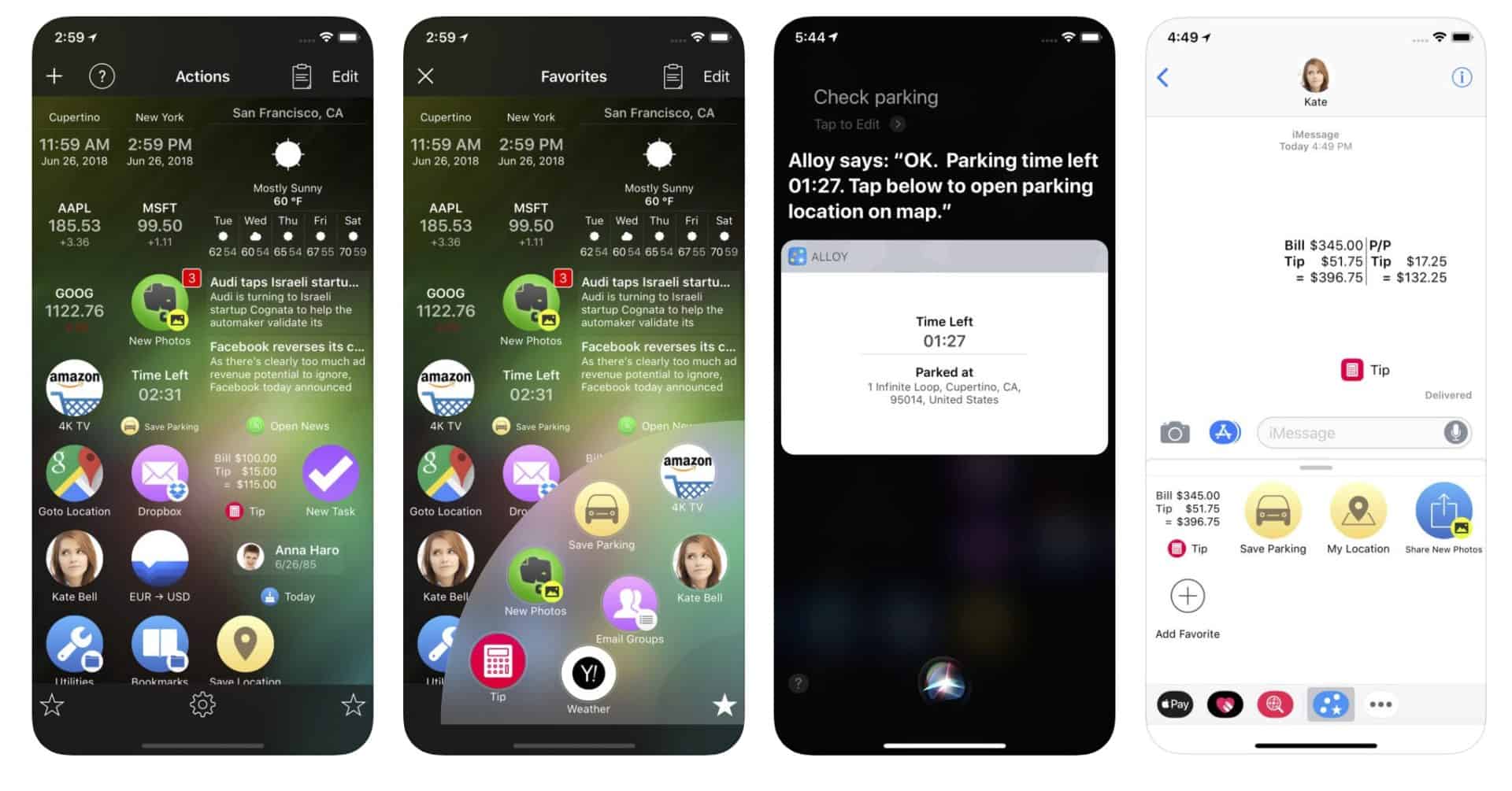
Alloy en planeringsapp och en app för att samla och hålla reda på olika händelser – och automatisera dem.
Gratis idag 27/11-2024
Alloy is all about automating your day-to-day activities. Whether you just need to launch an app or automate many repetitive and complex tasks – Alloy makes it simple and handy. So if you need to post today’s photos with added watermark to Facebook, send canned SMS to someone, save and track your parking place and time, etc. – just create corresponding actions and use them again and again.
Alloy combines the best of two worlds:
● Advanced launcher with dynamic favorites based on your habits, location and usage statistics.
● Sophisticated workflow engine, whoch allows to build actions utilizing REST Web Services, system and Cloud services, installed apps etc.
Sample actions would be:
● post today’s photos with added watermark to Facebook
● calculate tip
● send group SMS and email
● send canned SMS to someone
● save parking place and setup a reminder to leave
● find pizza on Yelp
● upload new photos to Dropbox and send links of them by email
● convert EUR to USD using Convertible
● navigate to certain location using Google Map
● etc.
You can either use ready-to-use actions from built-in Action Directory or you can build your own actions using simple yet powerful action editor. You can specify install and launch tasks, use variables and macro, use app icons and contact photos, specify whoch data is acceptable for action etc
Alloy eliminates the need to browse through several pages full of apps to find an app or action to launch – dynamic Favorites would provide you just right set of needed apps and actions based on your habits, location and usage statistics.
To show Favorites tap the Star button and tap desired action. Or long press the Star button and swipe to desired action. You can pin some actions to Favorites and fine-tune how Favorites are calculated.
You can even use Alloy Favorites right from any other apps by employing Alloy Widget. Just pull-down the Notification Center, navigate to Alloy Widget and tap to a desired action to launch it.
Any Alloy action can be launched from other apps by opening corresponding links e.g alloy://smsKate. To get a link to an action: turn ON the Edit mode, tap the Share button on the action and choose the ”Copy Link”. Two-way communication with other apps is also supported via x-callback-url.
Take some time to teach Alloy about your needs and let Alloy greatly improve your life by automating your day-to-day activities.
Sitter du med en scanner som du inte riktigt vet var mjukvaran för att scanna in dokument finns eller om du vill ha tag på något lite mer avancerat så kan det vara VueScan du letar efter.
VueScan har stöd för snart sagt varenda scanner ute på marknaden och programmet uppdateras mycket frekvent vartefter nya modeller lanseras. Det är ett alldeles utmärkt program som mycket ofta är betydligt bättre än det som följer med din scanner. Vuescan kostar strax under 50 dollar.
VueScan is a scanning program that works with most high-quality flatbed and film scanners to produce scans that have excellent color fidelity and color balance. VueScan is easy to use, and has advanced features for restoring faded colors, batch scanning and other features used by professional photographers. Why should you use VueScan?
Easy to use – just run VueScan, press Preview, adjust the cropping, then press Scan.
Accurate colors – uses ICC profiles and IT8 calibration.
Powerful – dozens of advanced options.
Faster workflow – can edit one image while the next image is being scanned (most scanner software won’t let you work with one image while another is being scanned).
Simple to install – installing VueScan changes nothing on your system, installs nothing in your operating system and all other scanner software will continue to function.
What’s new in version 9.8.40
Added neural network (AI) to determine image rotation (Auto setting of ‘Input | Rotate’)
Added automatic entry of registration info when viewing purchase receipt
Added tip on macOS Sequoia to enable ‘Local Network” for networked scanners
Added ‘Prefs | Enable spin buttons’ back to Windows and Linux versions
Added support for Latin OCR
Removed ‘Help | Uninstall” from Windows version (use Apps control panel)
Fixed problem with OCR on macOS and Linux
Fixed problem with exiting VueScan and leaving document feeder hung
Fixed problem with spurious error when installing VueScan on Windows
Fixed problem with reading JPEG files with CMYK color space
Fixed problem with text alignment in user interface
FUSE for macOS är ett program för att läsa andra filsystem, fler filsystem, än de som ingår i OS X.
Med FUSE så kan du få stöd för andra filsystem än Apples egna.
FUSE for macOS (was OSXFUSE) allows you to extend OS X’s native file-handling capabilities via third-party file systems. It is a successor to MacFUSE, whoch is no longer being maintained.
As a user, installing the FUSE for macOS software package will let you use any third-party file system written atop FUSE for macOS or MacFUSE, if you choose to install the MacFUSE compatibility layer. As a developer, you can use the FUSE for macOS SDK to write numerous types of file systems as regular user-space programs. The content of these file systems can come from anywhere: from the local disk, from across the network, from memory, or any other combination of sources.
This package will install the runtime and development components of FUSE for macOS. Please note that no FUSE for macOS-based file systems are included in this package.
What’s new in version 4.8.3
Fix race condition in macFUSE.framework that was introduced in version 4.8.2. The race condition can be triggered by removing items from a directory while listing the directory’s contents. This can lead to a segmentation fault.
Improve fault tolerance of installer and uninstaller. There are documented cases of pkgutil(1) returning invalid version numbers for installed packages. This could result in issues when installing macFUSE updates or running the uninstaller.
Work around a bug in xcodebuild resulting in SDKs being listed twice.
Apples iCloud är en utmärkt tjänst för att synkronisera information mellan dina Mac-datorer men den täcker inte allt – Mail, iCal, Addressbook och några fler program och funktioner kan du synkronisera – men inte allt.
Ska du synkronisera annan information så är en smidig lösning programmet Chronosync.
Chronosync är ett mycket enkelt program att konfigurera. Du klickar dig fram till det som ska synkroniseras – du klickar dig fram dit informationen ska, sparar och sedan är det klart.
Folder
Du väljer alltså den folder där informationen finns och sedan dit informationen ska. Förslagsvis sparar du sedan din synkning med ett lätt indentifierbart namn (Firefox, iTunes).
Nästa steg är att samla dina synkningar i en synkronisering – en container. Det är en lista, en samling på de synkroniseringar som du har sparat. Sen är det klart.
Automatiskt
Du kan köra en container eller en synkronisering manuellt, atomatiskt eller så snart en enhet ansluts – det väljer du.
Chronosync är det program jag använder för kompletterande synkroniseringar och ett tag var det ett program som kördes dagligen, morgon och kväll. Numera behöver jag det inte riktigt lika ofta men det finns kvar i min Mac och det gör fortfarande stor nytta.
What’s new in version 11.0.5
Enhancements and changes:
Improved compatibility with InterConneX running on iOS 18.
Added logic so that real-time file system change triggering diagnostics are generated when ‘SchedulerDebug’ is enabled.
Added logic that reduces the possibility that a file system change-triggered sync task would itself trigger another scheduled sync execution if running with SmartScan enabled and no actual file system changes occurred in between task executions.
Bug fixes:
Eliminated a potential crash when an iCloud-based sync’s attempt to gain coordinated access to a directory stalled long enough to trigger a timeout or abort, but was successfully attained after the timeout/abort logic kicked in.
Fixed a bug that could cause a crash when reloading the scheduled items database at exactly the wrong moment.
Fixed some auto layout UI glitches in the “Error Handling” section of the Options Panel.
Fixed some typos in the German General settings panel.
Fixed a bug whereby an AppleScript that triggered a sync or container task to begin execution could not properly monitor the state of that execution.